Audio Playback and Export
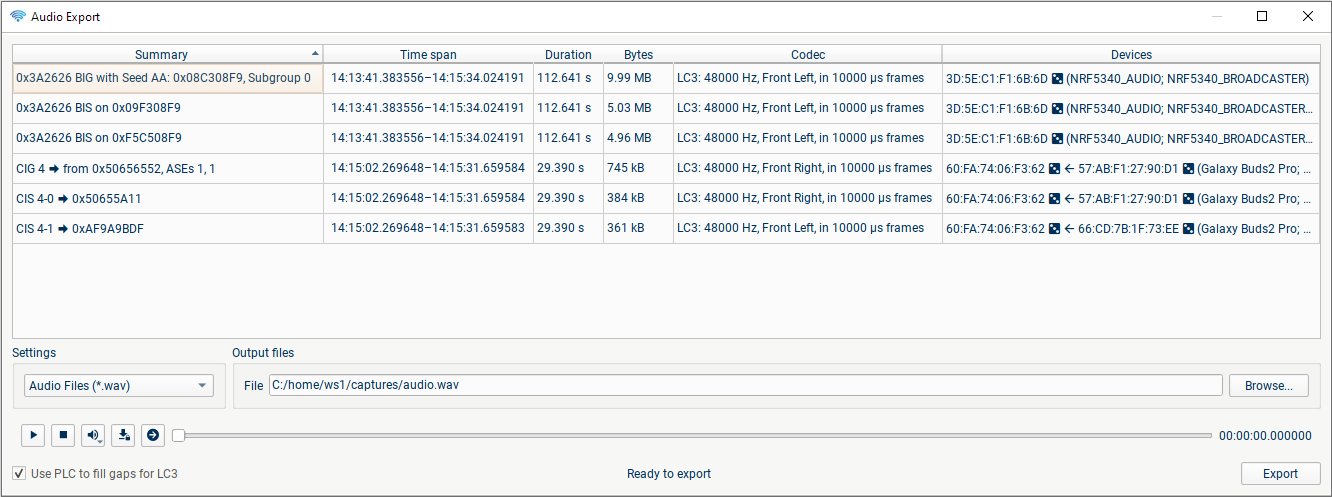
The Audio Export tab allows you to export captured audio to a file, and to play it back live or at a later point. All audio streams that are in the capture and we have some chance of decoding (i.e. we have decrypted them, or they were sent unencrypted) are present, including those for which we are missing some audio parameters (e.g. sample rate) or those using an unsupported or unknown codec; so not all of the rows can necessarily be decoded for playback.
If you are capturing audio streams which are encoded with proprietary codecs, you may be able to add a plugin to extend blueSPY's decoding capabilities. See Custom Audio Decoders for more details.
For streams using LC3 which have unknown, invalid or incorrect audio parameters, you can right-click on the stream to open the "Configure LC3 Codec" dialog. Here you can either override the parameters manually, or use the "auto-detect" functionality to determine likely parameters.
The table can be sorted by any of the columns; the first number printed in the Summary column for BIGes and BISes is the Broadcast Code, to make it easier to find a broadcast with a known Code.
For playback or export of LC3 audio, you have the option to either use the PLC algorithm to fill gaps where packets were missed, or to have an appropriate number of zeroes inserted in the stream.
Playback
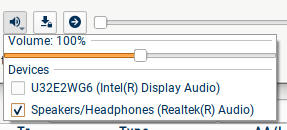 To play some decoded audio, select a row, select an output (headphones, laptop speakers etc) and press play.
The audio will start playing from the start of the stream; to hear it (approximately) live, press play and then drag the play position slider all the way to the right.
To play some decoded audio, select a row, select an output (headphones, laptop speakers etc) and press play.
The audio will start playing from the start of the stream; to hear it (approximately) live, press play and then drag the play position slider all the way to the right.
Multichannel streams sent over separate transports (e.g. multiple CISes carrying stereo, or multiple BISes) can be played either individually by selecting the CIS/BIS row, or with both/all channels by selecting the CIG or BIG row.
You can choose to have the Timeline and Summary scroll to remain synchronised with the audio you are hearing, using the Autoscroll button  .
This works smoothly when the selected Summary is in "Baseband" or "Radio" mode and all of the audio packets are visible; otherwise, the autoscroll will be jerky as it jumps between larger chunks of audio in the Summary.
.
This works smoothly when the selected Summary is in "Baseband" or "Radio" mode and all of the audio packets are visible; otherwise, the autoscroll will be jerky as it jumps between larger chunks of audio in the Summary.
You can also click  to go to the packet matching the current audio position, e.g. when the playback is paused.
Export
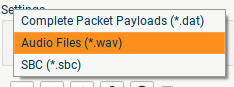 Audio streams can be exported either to a WAV file as decoded audio, or to binary files containing the original (decrypted) bytes from the air packets for analysis in other tools (e.g. reference decoders). In addition, for A2DP streams the binary export can either include the AVDTP header ("Complete Packet Payloads"), or only the audio payload; in the case of SBC, this results in a *.sbc file which can be played by standard audio players.